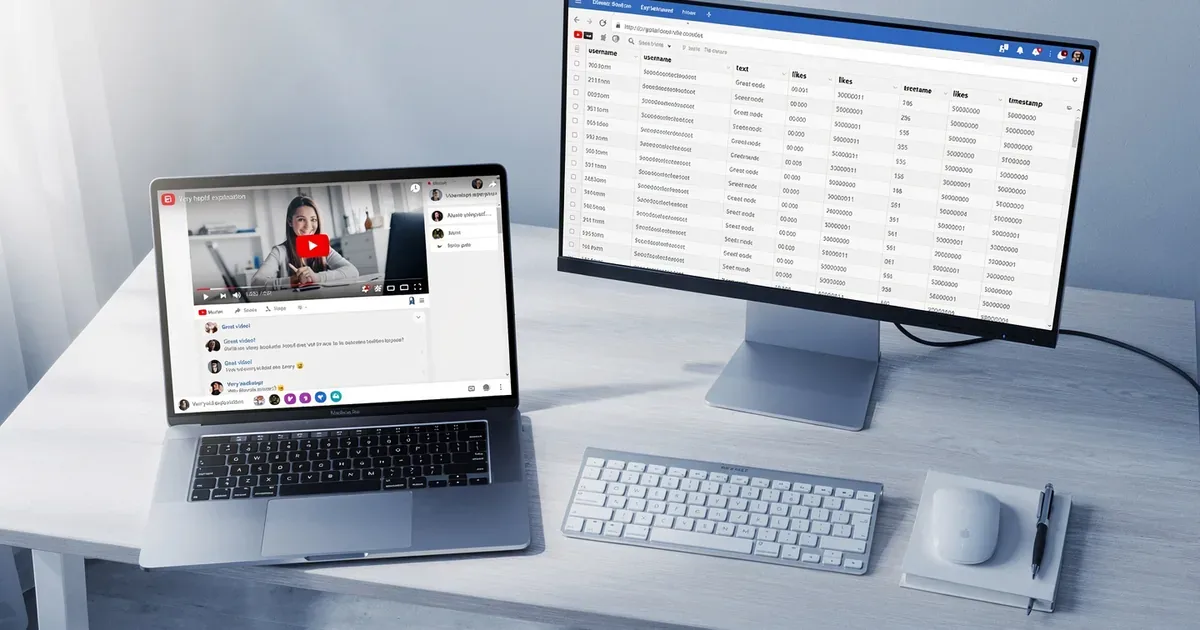
YouTube has no built-in bulk comment export button. If you want to export YouTube comments — whether for research, moderation, or content strategy — you need a third-party tool, a browser extension, Google Takeout, or the YouTube Data API. This guide covers every method available in 2025, compares them side by side, and tells you exactly which one fits your situation.
By the end, you will know how to download YouTube comments to Excel, CSV, JSON, or any other format — regardless of your technical skill level.
Why Export YouTube Comments? (Real Use-Cases)
Before choosing a method, it helps to know what you are trying to accomplish. Here are the most common reasons people extract YouTube comments:
- Content strategy: Mining audience questions and pain points to generate future video ideas directly from your viewers' words.
- Sentiment analysis: Understanding positive versus negative reception at scale — impossible to do manually across thousands of comments.
- Community moderation: Bulk-reviewing comments for spam, hate speech, or policy violations before they surface to other viewers.
- Influencer vetting: Assessing comment authenticity — engagement quality, bot signals — before committing to a brand partnership.
- Academic or market research: Collecting public discourse data as a legitimate corpus for qualitative or quantitative analysis.
- Giveaway management: Capturing every eligible entrant in one spreadsheet so you can run a fair, auditable random draw.
Each use-case has different volume and format requirements, which is exactly why the right method varies by person.
What Data Can You Actually Export? (Fields Overview)
Not all tools expose the same fields. Understanding what is available helps you choose the right exporter before you start.
Standard fields available in most tools:
- Author username
- Comment text
- Like count
- Reply count
- Timestamp (published date)
- Comment ID and permalink
Advanced fields (API and premium tools only):
- Channel ID and author profile image URL
- Parent/reply thread structure (nested vs. flat)
- Viewer rating and moderation status
YouTube natively does not let you bulk-export comments from any video. There is no "Download Comments" button in YouTube Studio, even for your own channel. You must use one of the four methods below.
One more thing to consider: YouTube sorts comments by "Top Comments" (its own engagement algorithm) or "Newest First." The order you export depends on how the tool queries the API — and this affects which comments appear first in your dataset.
Method 1 — No-Code Online Tools (Best for Beginners)
No-code online tools are the fastest way to save YouTube comments without installing anything. You paste a URL, configure a few options, and download your file. Paid tiers can reach up to 5,000 comments per minute.

CommentPicker
CommentPicker.com is one of the most widely cited tools, trusted by over 3,500 brands. Its free tier exports up to 50 comments with 1 export per day. Paid plans remove limits and add filtering by date, like count, and keyword.
Steps to use it:
- Go to commentpicker.com and paste your YouTube video URL.
- Choose whether to include replies and set any filters.
- Click "Export" and select your format: CSV, XLSX, or JSON.
YouTubeCommentsDownloader.com
This tool supports bulk comment downloads from videos, playlists, entire channels, and live streams. Export formats include Excel (XLSX), CSV, JSON, HTML, and TXT — the widest format support of any free tool. It also supports YouTube Shorts comment export, which not all tools do.
Botster YouTube Comment Extractor
Botster runs server-side, so it handles large volumes without taxing your browser. It is well-suited for one-off research tasks where you need more than 1,000 comments without writing a single line of code.
SanishTech YouTube Comment Downloader
A lightweight free option for smaller datasets. Output is typically a plain text or CSV file. Good for creators who need a quick snapshot of a single video's comment section.
Ideal for: Creators, marketers, and anyone running a one-off research task who wants results in under two minutes.
Method 2 — Chrome Browser Extensions (Best for Quick Single-Video Exports)
Chrome extensions let you export YouTube comments without leaving the browser. They work directly on the YouTube page you are already viewing, which makes them feel seamless.
Comment Exporter for YouTube (Chrome Web Store)
Search "Comment Exporter for YouTube" in the Chrome Web Store and click "Add to Chrome." Once installed, navigate to any YouTube video and click the extension icon. It scrapes the visible comment section — either by scrolling the DOM or making API calls — and produces a CSV, JSON, or TXT file.
YouTube Comment Exporter by exporter24
A similar extension with a slightly different UI. It surfaces comment metadata (author, text, likes, timestamp) and lets you export in one click. Check the version update date before installing — Chrome extensions are dependent on YouTube's UI stability, and a YouTube front-end update can break an extension overnight. Always verify the extension was updated within the last 60–90 days.
Also confirm YouTube Shorts support before committing to an extension if Shorts comments are part of your dataset.
Ideal for: Users who want results without leaving the browser and are working with a single video at a time.
Method 3 — Google Takeout (Best for Exporting YOUR OWN Comments)
Google Takeout is the only native method provided by Google to export your personal YouTube data, including comments you have posted yourself.
Steps:
- Go to takeout.google.com and sign into the Google account you use on YouTube.
- Click "Deselect all" to clear every product checkbox.
- Scroll down to "YouTube and YouTube Music" and check it.
- Click "All YouTube data included," then deselect everything except Comments.
- Click "Next step," choose your delivery method and format, then click "Create export."
Google will email you a download link. The output is an HTML file containing all your comments. Use Ctrl+F to search within it, or open it in a browser and copy the content into a spreadsheet.
Key limitation: Google Takeout only exports comments you posted. It will not export other users' comments on your videos. If that is what you need, use Method 1, 2, or 4.
Ideal for: Creators who want a personal archive of their own comment history across all of YouTube.
Method 4 — YouTube Data API v3 with Python (Best for Developers & Large Scale)
The YouTube Data API v3 is the most powerful and compliant way to bulk download YouTube comments at scale. It is the method used by data scientists, academic researchers, and developers who need reproducible, automated exports.
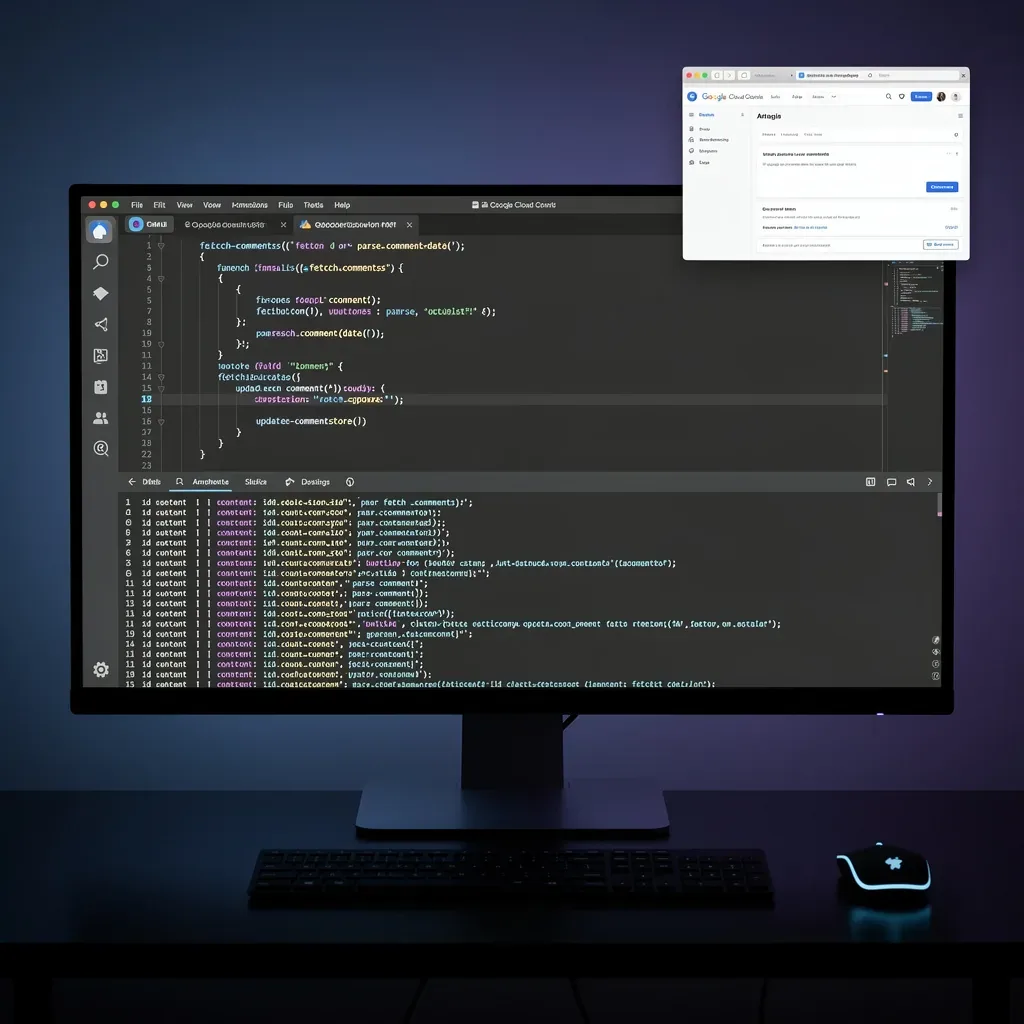
Getting Your API Key from Google Cloud Console
- Go to console.cloud.google.com and create a new project.
- Navigate to "APIs & Services" → "Library" and enable the YouTube Data API v3.
- Go to "Credentials" → "Create Credentials" → "API Key." Copy the key and restrict it to the YouTube Data API for security.
Sample Python Script Walkthrough
You need two Python libraries: google-api-python-client and pandas. Install them with:
pip install google-api-python-client pandas
The core logic uses the commentThreads endpoint. Each commentThreads.list call costs 1 quota unit and returns up to 100 comments per page. To retrieve all comments for a large video, you paginate using nextPageToken — the API returns a token in each response that you pass into the next request until no token is returned, signalling the end of the thread.
Here is a minimal working structure:
from googleapiclient.discovery import build
import pandas as pd

api_key = "YOUR_API_KEY"
video_id = "VIDEO_ID"
youtube = build("youtube", "v3", developerKey=api_key)

comments = []
next_page_token = None

while True:
    response = youtube.commentThreads().list(
        part="snippet",
        videoId=video_id,
        maxResults=100,
        pageToken=next_page_token,
        textFormat="plainText"
    ).execute()

    for item in response["items"]:
        top = item["snippet"]["topLevelComment"]["snippet"]
        comments.append({
            "author": top["authorDisplayName"],
            "text": top["textDisplay"],
            "likes": top["likeCount"],
            "published": top["publishedAt"],
            "reply_count": item["snippet"]["totalReplyCount"]
        })

    next_page_token = response.get("nextPageToken")
    if not next_page_token:
        break

df = pd.DataFrame(comments)
df.to_csv("youtube_comments.csv", index=False)
This script exports author, text, like count, timestamp, and reply count — the core fields — directly to a CSV file.
Handling API Quota Limits
The YouTube Data API v3 defaults to 10,000 units per day. Since each page request costs 1 unit and returns 100 comments, you can pull up to 1,000,000 comments per day in theory — but in practice other API calls (search, video details) also consume quota. For very large projects, apply for a quota increase in the Google Cloud Console or spread requests across multiple days.
Ideal for: Data scientists, researchers, and developers who need 10,000+ comments, scheduled automation, or integration with downstream data pipelines.
Method Comparison Table: Which One Should You Use?
| Method | Ease of Use | Cost | Volume Limit (Free) | Export Formats | Requires Coding | Whose Comments | | --- | --- | --- | --- | --- | --- | --- | | No-Code Online Tools | ⭐⭐⭐⭐⭐ Easiest | Free / Paid tiers | 50–1,000 | CSV, XLSX, JSON, TXT, HTML | No | Any public video | | Chrome Extensions | ⭐⭐⭐⭐ Easy | Usually free | Varies (often unlimited) | CSV, JSON, TXT | No | Any public video | | Google Takeout | ⭐⭐⭐ Moderate | Free | All your own comments | HTML | No | Your own comments only | | YouTube Data API + Python | ⭐⭐ Advanced | Free (within quota) | ~1M/day (API quota) | Any (you define) | Yes | Any public video |
Quick recommendation:
- Beginner / one-off task → No-code online tool (CommentPicker, YouTubeCommentsDownloader)
- Power user / in-browser workflow → Chrome extension
- Archive your own comment history → Google Takeout
- Developer / bulk / automated → YouTube Data API v3 with Python
Is It Legal to Export YouTube Comments?
This is the question most guides avoid. Here is a clear-eyed answer.
YouTube comments posted on public videos are public data. The landmark hiQ Labs v. LinkedIn (2022) ruling established that accessing publicly available web data does not, in itself, violate the Computer Fraud and Abuse Act (CFAA). This ruling directly supports the legality of scraping public comments.
That said, YouTube's Terms of Service prohibit automated scraping of its platform without using the official API. This means:
- API-based tools are fully compliant. Using the YouTube Data API v3 is explicitly sanctioned by Google.
- Third-party scrapers that bypass the API may violate YouTube's ToS, even if they are not illegal under CFAA. Use them at your own risk — your account or IP could be blocked.
- Best practices: Do not collect personal data beyond what is publicly displayed, do not re-identify commenters, and use the data responsibly — particularly in research or commercial contexts.
What to Do With Your Exported Comments (Turning Data Into Insights)
Exporting is step one. The real value comes from analysis.
Sentiment Analysis
Upload your CSV or JSON to ChatGPT or Claude with a simple prompt: "Classify each comment as positive, negative, or neutral and summarize the main themes." For programmatic analysis, use Python VADER (free, no API key needed) or MonkeyLearn (SaaS, no-code). Both tools return a sentiment score per comment that you can aggregate by video or time period.
Content Ideation from Recurring Questions
Run a word frequency analysis using Voyant Tools (free, browser-based) or Python's collections.Counter to surface the terms your audience uses most. Filter comments that end in a question mark to build an FAQ bank — these are your next video topics, framed in your audience's exact language.
High like-count questions are especially valuable: they signal that many viewers share the same curiosity, even if only one person typed it.
Engagement Rate Benchmarking
Once you have comment counts alongside view counts, calculate your comment-to-view ratio (e.g., 500 comments ÷ 50,000 views = 1%). Compare this across videos. A video at 5% versus your average of 1% almost certainly touched something emotionally resonant — that is your signal to create a follow-up.
For influencer vetting, export comments from a creator's recent videos and look for signs of inauthentic engagement: repetitive short phrases, no question marks or personal references, timestamps clustered in an unusually short window.
Frequently Asked Questions
Can I export comments from private or age-restricted videos? No. Only public videos with comments enabled can be exported through any method. Private videos are inaccessible to external tools, and age-restricted videos require authentication that most tools do not support.
Can I export comments from YouTube Shorts? Yes, but not with every tool. YouTubeCommentsDownloader.com and the YouTube Data API both support Shorts. Verify Shorts compatibility before choosing a Chrome extension.
Can I export live stream chat? Live stream chat is a separate data type from video comments. Look for dedicated YouTube Live Chat Exporter tools — the standard commentThreads API endpoint does not capture live chat replay in the same way.
Can I export comments from an entire channel or playlist?
Yes. Tools like YouTubeCommentsDownloader.com support bulk exports from playlists and entire channels. With the API, you would first retrieve all video IDs from a channel using the search.list or playlistItems.list endpoint, then loop through each video ID with the commentThreads endpoint.
How many comments can I export for free? It depends on the tool. CommentPicker's free tier caps at 50 comments and 1 export per day. Other free tools range from 200 to 1,000 comments. The YouTube Data API is free up to its 10,000 units/day default quota — enough for most non-enterprise use-cases at no cost.
